How to Get Your Toast API Credentials
Follow these steps to create your API credentials in Toast, then paste them into QuickSpice.
QuickSpice is not affiliated with or endorsed by Toast. This guide is provided to help you get set up.
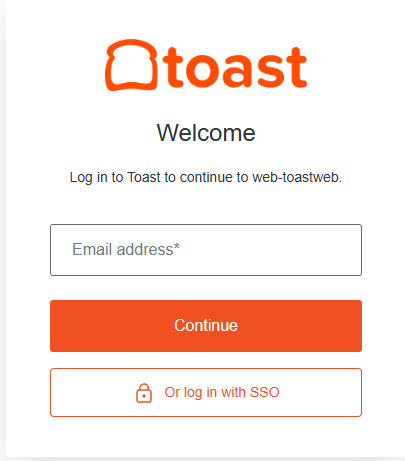
Open Toast LoginLog in to Toast
Log in to your Toast account at pos.toasttab.com with your email address.
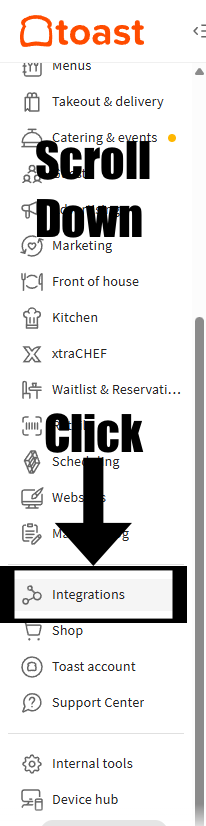
Find Integrations
In the left sidebar, scroll all the way down and click Integrations.
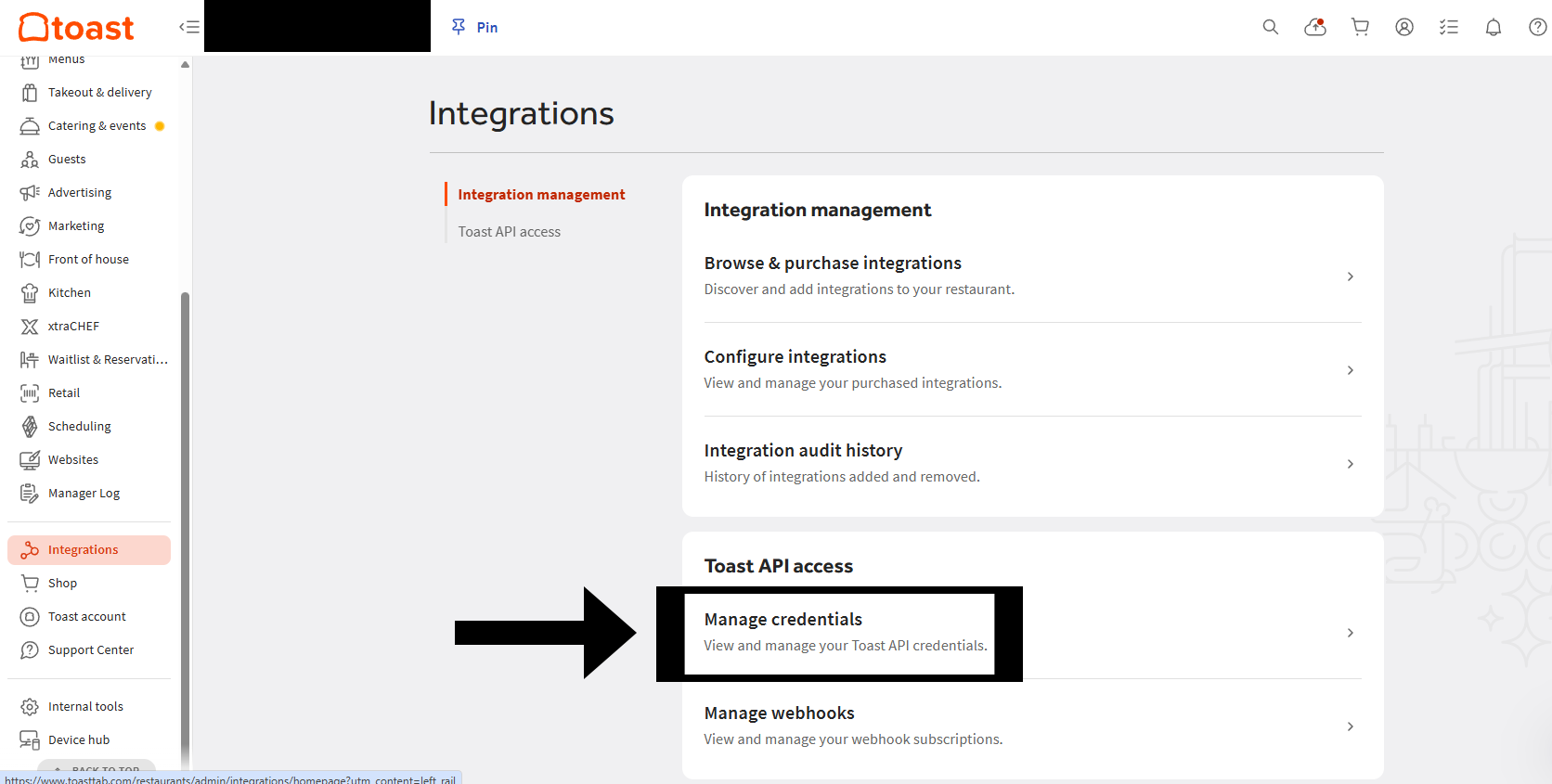
Manage credentials
Under Toast API access, click Manage credentials.
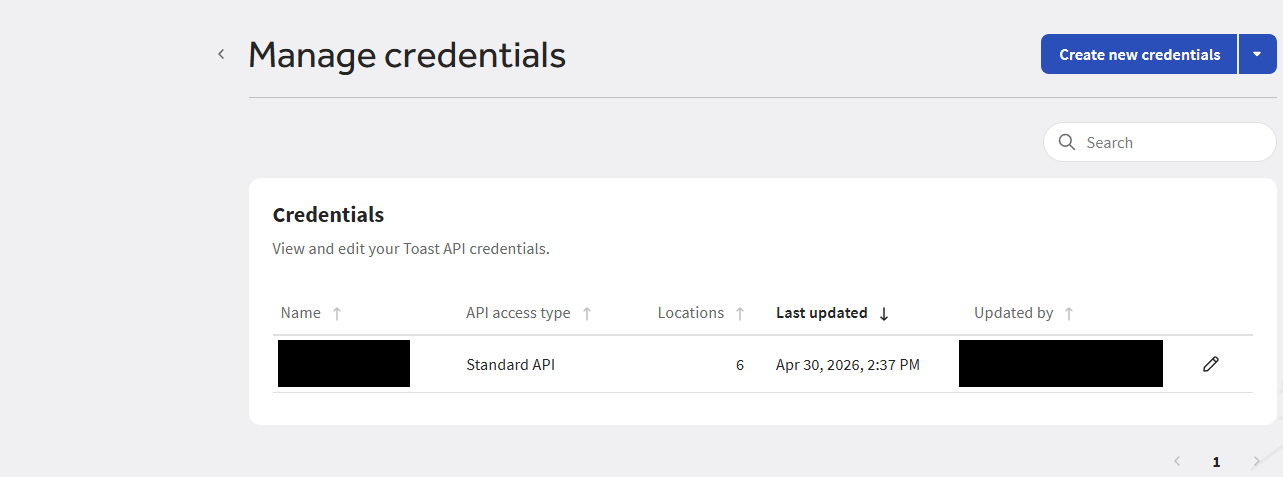
Create new credentials
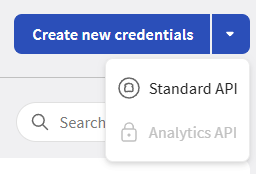
Click the Create new credentials button in the top-right corner.
Select Standard API
From the dropdown, select Standard API.
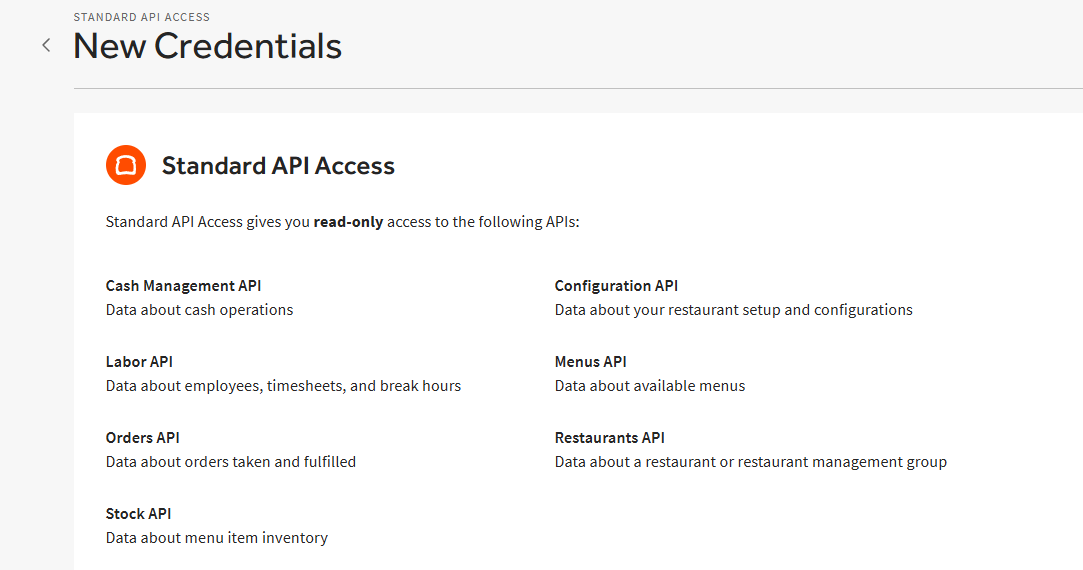
Standard API Access
You'll see the Standard API Access page. This gives read-only access to the data QuickSpice needs.
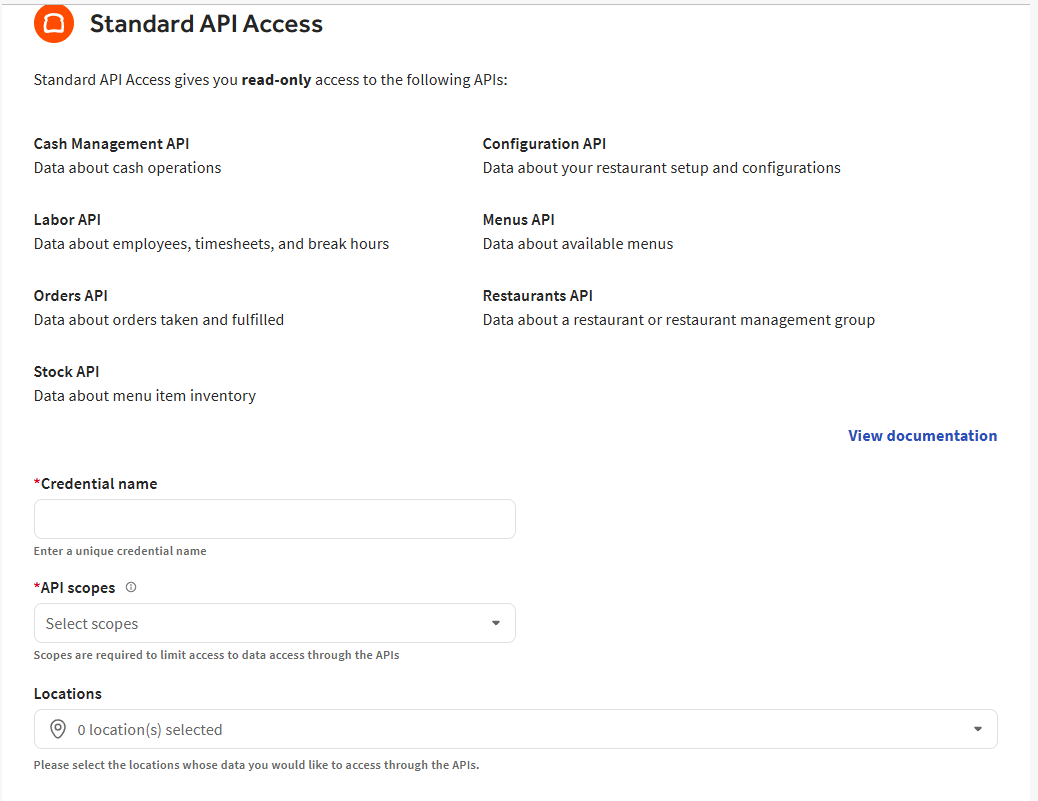
Fill in the form
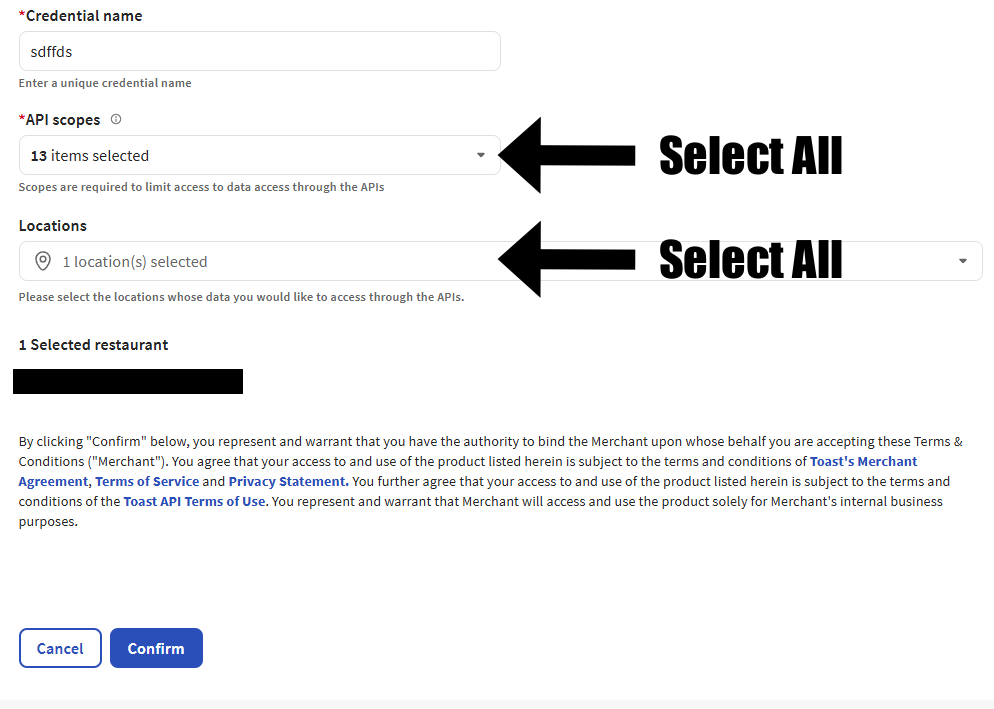
Scroll down. Enter any name for the credential. Under API scopes, select all. Under Locations, select all. Then click Confirm.
Credentials created
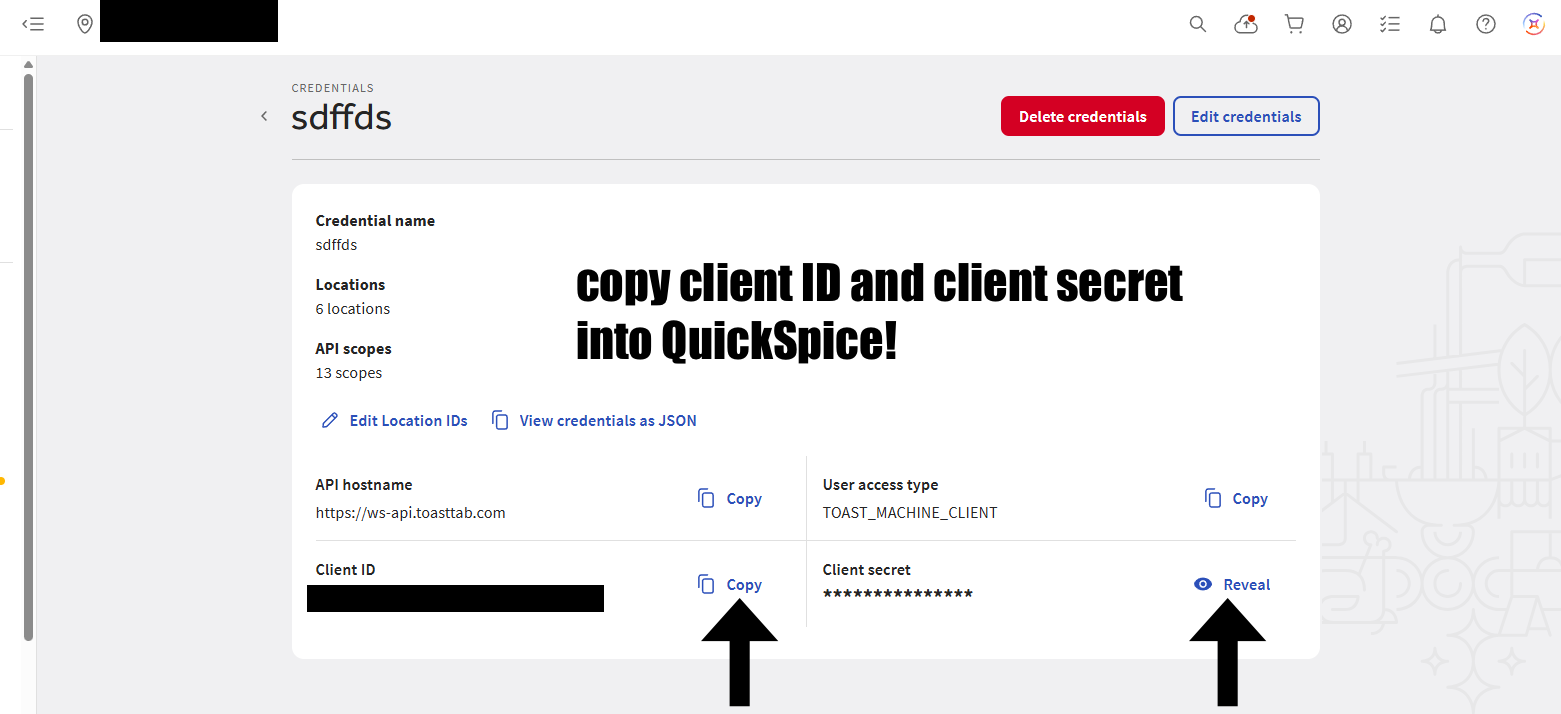
Your credentials are now created. You'll see your Client ID and Client Secret on this page.
Copy into QuickSpice
Copy the Client ID and Client Secret (click Reveal to see it), then paste them into QuickSpice. That's it!
Ready?
Sign in to QuickSpice to enter your credentials.
Sign InGo back and paste your credentials.
Go to POS ConnectionAsk your account administrator to enter these credentials in Company Settings → POS Connection.